

Double-click to edit...


How to Take a Vertical Panorama Photo on the iPhone!
Double-click to edit...
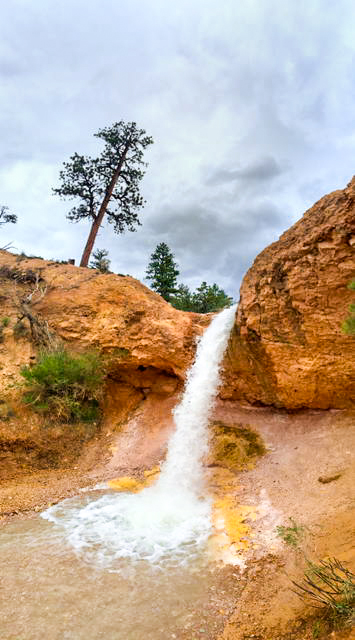
Some of you might know this already but I just had a breakthrough this weekend while in some really beautiful parts of the Utah desert! I figured out that you can easily take a vertical panorama photo on the iPhone! We were at this beautiful waterfall and when we hiked below it, there was also a huge pine tree above it. I was frustrated that I couldn't get a good composition of the waterfall AND the whole tree in one shot. Here's what it looked like:

I'm pretty sure right after I took this I said out loud, "Man, I wish you could take a vertical panorama so I could get that tree in my shot".
Then you know what I did? I turned my camera to the panoramic setting, turned my phone sideways to see what would happen and GUESS WHAT! It worked! haha.
Here's my shot! It's WAY better, right? YAY!
To Take a Vertical Panorama:
Open your camera and select the panorama mode.
Turn your camera sideways.
Take the panorama as usual and press done when finished!
Sometimes I am the one learning as I go too :) Anyway, I was pretty excited about my discovery and thought I'd share the tip with you readers out there!! Take your iPhone landscapes to the next level with vertical panoramic photos.
iPhone & Android Photography App for Editing - Snapseed Review
Double-click to edit...
Are you guys and gals ready for another fun photography app for your phone images? I have been playing around with Snapseed this week and I am surprised by how much I like it! It has been fun to play around with a few images and see what this app has to offer. I'm impressed. AND it is for both iPhones and Android phones.
Go to the App store and download Snapseed to get a really easy to use and fun app to make your images brighter, edit selective areas on a photo, add vignetting, and have access to a ton of really great filters. I bet you'll love it too.
Once you have the app, go to Open. You'll then choose if you'd like a photo from your library, if you want to navigate which image to open on your device (instead of through the app) OR use your camera to take a photo.

Here's the main screen with your tool options and your filter library. I love the choices we get to access here.

In every top left corner of each tool option, you'll see a question mark (?). If you click on it, the app will demonstrate how the tool works! It's pretty cool. Most edits you will slide your finger across the screen or up and down to change the setting. I like being able to see the change right when I move my finger.
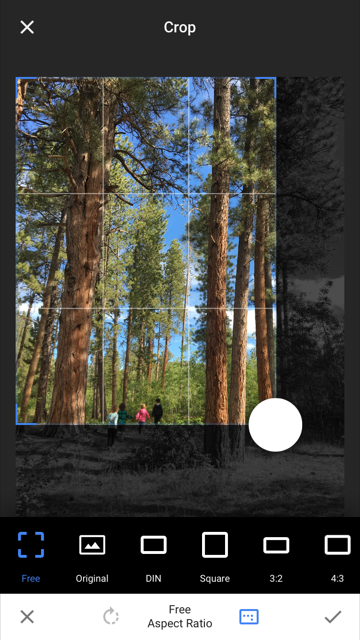
You can also selectively adjust the brightness, contrast and saturation, which is awesome!

They have a great library of filters; I like some of the vintage ones a lot!
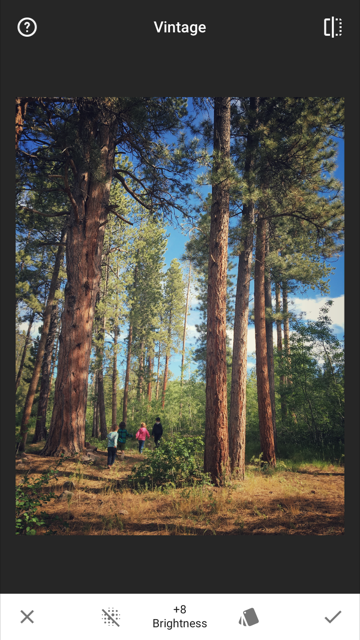
Give Snapseed a try and see if it gets you better edits on your phone! Take your iPhone and Android photos to the next level by taking some time to make them brighter, more clear and styled the way you like.
Quick Tip - Batch Photo Editing in VSCO Cam
Double-click to edit...
It's Aloha Friday! I spent my teenage years living in Hawaii and every time Friday rolls around, I can't help but say it. We're still getting snow and it's almost May, which is making me miss the warm sunny days on the beautiful island of Maui. I miss that place. Sunshine or no sunshine, I am excited that the weekend is starting!
Today I've been playing around with the VSCO Cam app and I just learned something AWESOME! I thought I'd share this quick tip with you today.
-PS and by the way, the VSCO Cam App is also available on Android phones, not just iPhones. If you haven't dowloaded it already, check it out!
Here's the fun tip: you can BATCH edit your photos on this app! Batch editing means you make your edits to one photo, and you can select as many photos as you'd like to add those same edits to. Click one button and it will automatically apply the same edits, all at once. Pretty sweet, yah? I used to end my sentences with 'yeah' all the time. It's a Hawaii thing...
How to Batch Edit Photos in VSCO Cam
1. Select, edit and save your photo.
2. Click on the photo you edited and go to the menu button on the bottom right of your library screen (the three little dots).
3. Click 'COPY EDITS'.

4. Now select the photos you want to apply your edits to (in the image below, you'll see your photos highlighted with a gold box).
5. Go to the same three dot menu button, and click 'PASTE EDITS'.
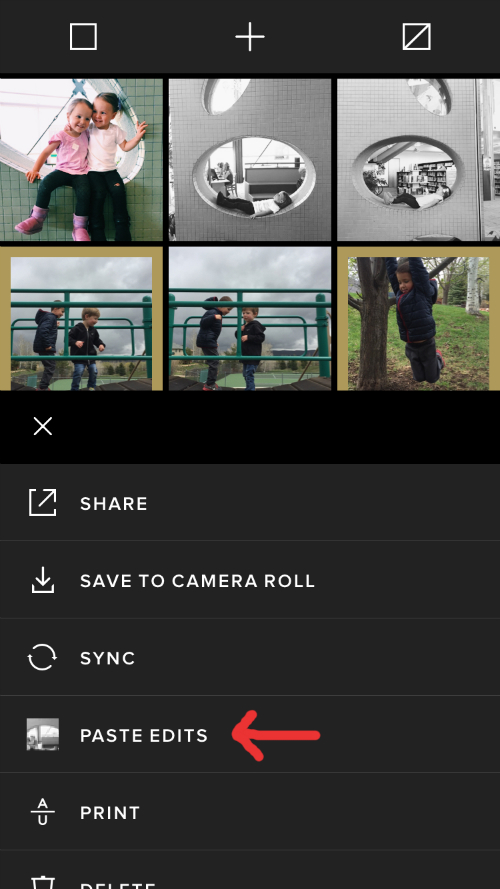
There you have it! All those photos will change to look the way your master photo does. Batch editing on your phone. I am loving this little trick.
Stay tuned and check in next week for my first GIVEAWAY! Have a great weekend!
Creating Black and White iPhone Images
Double-click to edit...

